How to Seamlessly Switch Between KDE Plasma and GNOME Desktop Environments on Linux
Introduction
Linux offers you the remarkable freedom to change your desktop environment (DE) without reinstalling the entire operating system. This flexibility lets you mix and match the look, feel, and workflow that best suits your needs. After spending months toggling between KDE Plasma and GNOME, I discovered that these two popular DEs aren't really rivals—they each bring unique strengths to the table. In this guide, you'll learn how to install, switch, and compare GNOME and KDE Plasma on your existing Linux system, so you can enjoy the best of both worlds.
What You Need
- A Linux distribution that supports multiple desktop environments (e.g., Ubuntu, Fedora, openSUSE, Debian, Arch Linux).
- Internet connection – to download the DE packages.
- Basic command line comfort – you'll run a few terminal commands.
- At least 5 GB of free disk space (for the DE and its dependencies).
- A backup of your important files (just in case).
Step-by-Step Guide
Step 1: Choose Your Base Distribution
Before switching DEs, ensure your current Linux distro plays well with both GNOME and KDE Plasma. Most mainstream distros like Ubuntu, Fedora, openSUSE, and Debian offer official packages for both. If you're using a minimal or specialized distro (e.g., Arch Linux or Gentoo), you'll still be able to install the DEs, but you'll need to handle additional configuration manually. For this guide, we'll assume you're on a popular, user-friendly distribution.
Step 2: Install the Alternative Desktop Environment
If you currently use GNOME and want to try KDE Plasma (or vice versa), you need to install the new DE. The package names vary by distribution, but the commands are straightforward.
- On Ubuntu/Debian-based systems:
- To install KDE Plasma:
sudo apt install kde-plasma-desktop(for a minimal set) orsudo apt install kde-standardfor the full suite. - To install GNOME:
sudo apt install ubuntu-desktop(if on Ubuntu) orsudo apt install gnome.
- To install KDE Plasma:
- On Fedora/CentOS/RHEL-based systems:
- To install KDE Plasma:
sudo dnf groupinstall 'KDE Plasma Workspaces'. - To install GNOME:
sudo dnf groupinstall 'GNOME Desktop'.
- To install KDE Plasma:
- On openSUSE:
- Use YaST or command line:
sudo zypper install patterns-kde-kde_plasmaorsudo zypper install patterns-gnome-gnome.
- Use YaST or command line:
- On Arch Linux:
- For KDE Plasma:
sudo pacman -S plasma. - For GNOME:
sudo pacman -S gnome.
- For KDE Plasma:
After installation, the system will have both DEs available. Tip: You can also install a display manager that handles multiple DEs seamlessly; most distributions use GDM (for GNOME) or SDDM (for KDE), but both can display all installed environments.
Step 3: Log Out and Select the New Desktop Environment
Once both DEs are installed, log out of your current session. On the login screen (display manager), look for a small gear or settings icon near the password field. Click it, and a list of available desktop environments will appear. Choose either GNOME or KDE Plasma, then enter your password and log in. The system will load the selected DE and remember your choice for future logins (unless you manually switch again).
Step 4: Customize Your New Desktop Environment
Both GNOME and KDE Plasma are highly customizable, but they approach it differently.
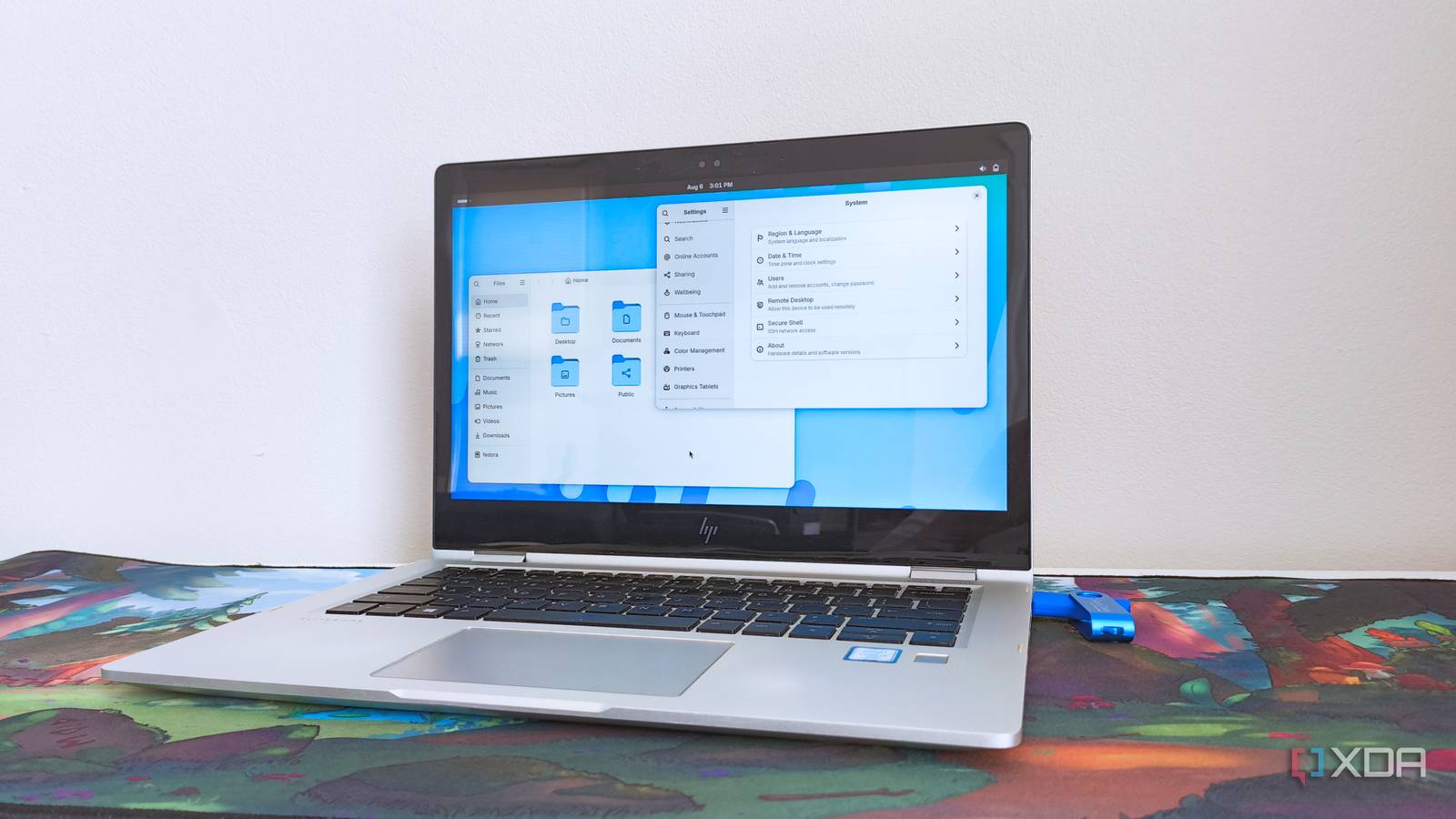
- GNOME: Focuses on simplicity and a clean workflow. Extensions (see how to manage extensions) can add functionality. You can tweak settings via the GNOME Tweaks tool (install with
sudo apt install gnome-tweaks). - KDE Plasma: Offers extensive control out of the box. Right-click the desktop to access system settings, add widgets, or adjust panels. The System Settings app lets you change almost every visual and functional detail.
Spend some time exploring the default applications and panels. You can install additional apps specific to each DE (e.g., Dolphin file manager for KDE, GNOME Files for GNOME). Remember, your personal files remain accessible regardless of the DE.
Step 5: Switch Back and Forth as Needed
You are not locked into one DE. To switch again, simply log out, change the DE selection at the login screen, and log back in. The settings you saved in each DE (e.g., wallpapers, panel positions) are stored separately—they won't interfere with the other environment. You can keep both DEs installed indefinitely. Over time, you may develop a preference or use each one for different tasks: GNOME for focused writing sessions, KDE for multimedia and system tweaks.
Tips for a Smooth Dual-Desktop Experience
- Update your system regularly – package managers often include updates shared by both DEs.
- Avoid installing too many duplicate applications – you don't need both GNOME Calendar and KDE's Kalendar. Pick one to keep disk usage low.
- Back up your configurations – use tools like
dconf(for GNOME) orkonsave(for KDE) to save and restore your desktop preferences. - Try a dedicated testing session – install both DEs on a virtual machine or a spare partition before committing to a daily driver.
- Remember they're not competitors – each DE has a different philosophy. GNOME values a streamlined, extension-driven approach; KDE prides itself on deep customization. Use whichever makes you productive, and feel free to switch when your mood or task changes.
- Keep your base system minimal – start with a lightweight distro and add only the DEs you need. This reduces bloat and improves performance.
With these steps, you can enjoy the best of both GNOME and KDE Plasma on the same Linux machine. Embrace the freedom to choose—your desktop should adapt to you, not the other way around.